Dual Monitors vs Ultrawide Monitor: Which Setup Fits Your Desk?
You want more screen than one monitor gives you, and there are two ways to get it: two separate panels side by side, or one very wide panel. They look like the same upgrade. They are not — dual monitors give you a hard split, a seam, and two mount points, while an ultrawide gives you one seamless span, one mount point, and a curve you either live with or love.
This guide compares the two on the numbers the manufacturers actually publish: panel width, pixel count, window-splitting features, and arm weight ranges. All specifications below come from the manufacturers' own pages, manuals, and spec sheets, verified October 29, 2026. Where no manufacturer publishes a figure — minimum desk width, bezel-gap width — we say so rather than filling the gap with a guess.
What each setup actually is
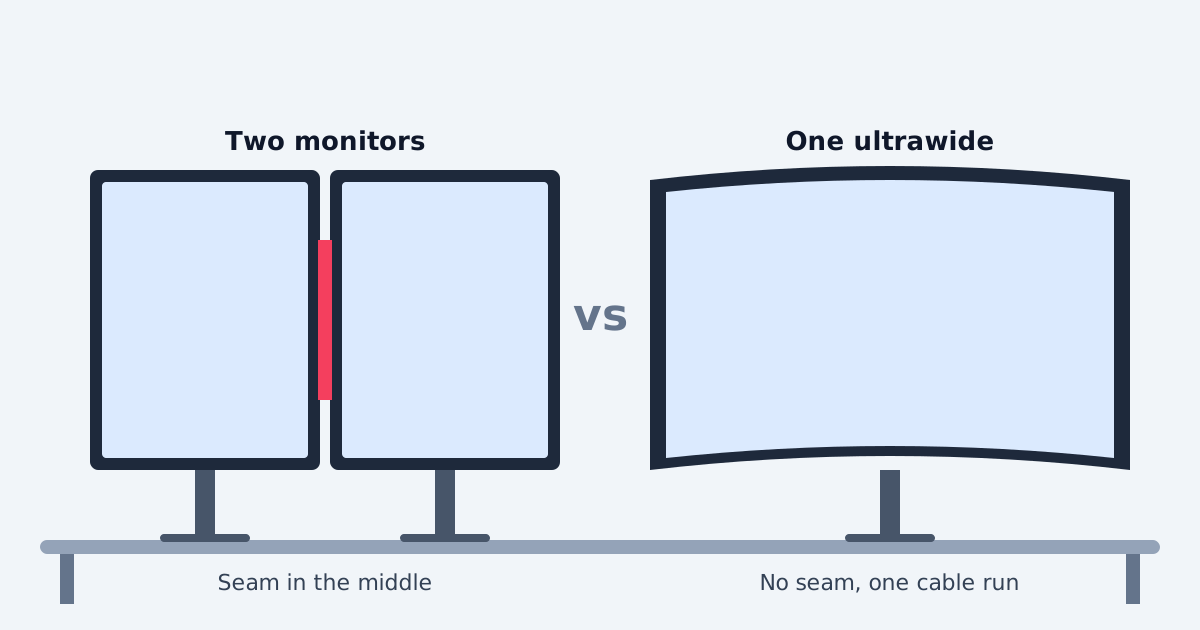
Dual monitors are two independent 16:9 displays, each with its own stand or arm mount, its own video cable, and its own bezel. The classic productivity pairing is two 27-inch 1440p panels (2560 × 1440 each). They can show two different machines, run at different resolutions, and be replaced one at a time. The cost is the seam: the center of your view is a plastic boundary, and the combined width is the sum of both panels plus whatever gap or angle you leave between them.
An ultrawide is one panel with a 21:9 aspect ratio — typically 34 inches at 3440 × 1440 — while a super-ultrawide is one 32:9 panel, typically 49 inches at 5120 × 1440. There is no seam, one stand or arm carries the whole display, and one video cable can drive the entire width. The cost is that the "two screens" are a software split, not a physical one, and the panel is one large, heavy, usually curved object that must fit your desk and your arm as a single unit.
Those two sentences already contain the whole buying decision. The rest of this guide is the numbers behind them.
Check 1: Width on the desk — dual 27s are wider than you think
Measure monitors, not diagonals. A 27-inch 16:9 panel is about 24.1 inches wide: Dell lists its 27-inch QHD P2723DE at 61.16 cm (24.1 inches) wide with its stand. Two of them side by side span about 48.2 inches before any gap or angling — that is simple addition of two verified widths, and your real span will be a little more once you angle them or leave a gap.
Now compare the ultrawides. Dell lists its 34-inch U3425WE at 813.46 mm (32.03 inches) wide with its stand — a full 16 inches narrower than dual 27s. The 49-inch class flips the comparison back: Dell's U4924DW is 1214.9 mm (47.83 inches) wide, and Samsung's OLED G9 (G93SC) is 1194.7 mm (47.04 inches) wide with its stand. So a 49-inch super-ultrawide is roughly as wide as dual 27s, while a 34-inch ultrawide is dramatically narrower. Anyone who tells you "ultrawides save desk space" without naming the size is skipping the only number that decides it.
One honest gap in the record: no monitor manufacturer surveyed publishes a minimum desk width for any of these setups. Desk-brand guides quote figures, but they are not monitor-manufacturer sources, so we do not present them as requirements. The usable rule is the one above: start from the verified panel width, then add room for the stands or arms, for the angle you will actually use, and for everything else that must share the surface — keyboard, notebook, speakers. If dual 27s at 48.2 inches leave no room for anything else, that is your answer, and it came from your tape measure, not from a quoted minimum.
If you are still choosing the mount style for either setup, the single-vs-dual-arm guide and the clamp-vs-grommet guide cover the tradeoffs, and our ultrawide arm guide covers the heavy-panel checks in full.
Check 2: Pixels — the 34-inch trap
The most common misunderstanding in this whole category is that a 34-inch ultrawide "replaces two monitors." On pixels, it does not. A 34-inch ultrawide at 3440 × 1440 has 4,953,600 pixels. Two 27-inch 1440p panels at 2560 × 1440 each total 7,372,800 pixels. The ultrawide gives you about two-thirds of the dual setup's pixels — a real difference if your work is spreadsheets, timelines, or code side by side. (Pixel counts here are arithmetic from the manufacturers' published resolutions, not manufacturer quotes.)
The 49-inch super-ultrawide is the honest version of the claim. At 5120 × 1440 it has exactly 7,372,800 pixels — the same count as dual 1440p, in one panel. Dell says so itself for the U4924DW, describing "two 27-inch QHD partitions" and "one screen or two." So the pixel ladder is: 34-inch ultrawide (4.95 million) below dual 1440p (7.37 million), 49-inch super-ultrawide exactly equal to dual 1440p. If someone sells you a 34-inch ultrawide as "two monitors in one," check which two monitors they mean — two small ones, maybe; two 27-inch 1440p panels, no.
There is one more pixel case worth naming: dual 27-inch 4K panels total 16,588,800 pixels, far beyond any ultrawide on the market. That only matters if your computer can drive two 4K outputs and your eyes and scaling settings can use them — check your machine's video outputs before assuming the dual-4K route is available to you at all.
Check 3: Splitting the screen — software seams vs a physical seam
Dual monitors split by hardware: drag a window to a screen and it stays there, fullscreen means one screen, and a second machine can own the second screen outright with no software involved. An ultrawide splits by software, and the quality of that split depends on the model. Dell's U3425WE and U4924DW user guides describe Picture by Picture (PBP) and Picture in Picture (PIP), plus a built-in KVM switch that lets one keyboard and mouse control two computers, with Auto KVM on top. LG publishes PBP (2PBP) on its 34BP88C-B and a built-in KVM on its 34BQ77QC-B; Samsung lists PBP and PIP on the OLED G9 and offers its Easy Setting Box screen-splitting software on the G9 pages.
Read the fine print before assuming the software split equals two screens. Dell's U4924DW manual notes that images under PBP are displayed at the center of the screen, not full screen — the split windows do not behave exactly like two separate displays. And a software split still runs through one video input path in a way two independent panels do not: if the ultrawide itself fails, you lose everything at once, while a failed panel in a dual setup leaves you one working screen. That is not a reason to avoid ultrawides; it is a reason to keep backups of the work, not of the hardware argument.
The KVM point cuts the other way and is genuinely useful: if you regularly switch one keyboard and mouse between a work laptop and a personal machine, a KVM-equipped ultrawide (Dell lists the KVM switch in the U3425WE's built-in devices) does in one cable run what a dual setup does with a separate switch or two sets of peripherals. Check the exact model's spec page — KVM is a per-model feature, not an ultrawide standard.
Check 4: Mounting — one heavy panel vs two lighter ones
Mounting is where the two setups diverge most in cost and risk. Dual monitors are two ordinary loads: Ergotron's LX Dual Side-by-Side arm (45-245-224) is rated for screens up to 27 inches at 7 to 20 lbs per monitor with a 40 lb combined maximum, and HUANUO's HM2 vertical dual mount supports up to 22 lbs per monitor for 13- to 32-inch displays. A 27-inch panel at roughly 15 lbs with its stand removed sits comfortably inside those ranges, and each panel can be adjusted independently.
A 49-inch ultrawide is one extraordinary load. Dell lists the U4924DW at 16.30 kg (35.93 lbs) with its stand — and the figure to compare against an arm's range is the panel weight without the stand, which is always lower, so check the manual, not the box. The ultrawide-rated class exists for exactly this: Ergotron's HX desk arm is rated 20 to 42 lbs for up to 49-inch screens (per Ergotron's published brochure). Mainstream single arms that top out near 20 to 22 lbs do not belong under a 49-inch panel, whatever their diagonal-inch rating says — weight is the binding limit, and our ultrawide arm guide works through the full check, including minimum-load floors.
That minimum-load point deserves repeating because it bites both setups. Tension-balanced arms — gas-spring and constant-force designs — publish a range, not a ceiling. The LX Dual's 7 lb floor and the HX's 20 lb floor mean a panel that is too light will not balance either. Weigh each panel without its stand, then check it against both ends of the arm's published range. VESA is the easier half: the Dell, LG, and Samsung models in this guide use 100 × 100 mm, while the U4924DW also lists 200 × 100 — verify your exact panel, because a few ultrawides need an adapter plate the arm may not include.
Check 5: Curve and seating — the ultrawide's viewing-position tax
Most ultrawides are curved, and the curve rating is a radius in millimeters: Samsung's buying guide explains that R stands for radius, so a 1000R monitor has a 1000 mm curve, and a lower R number means a more pronounced curve. The models in this guide span the range — Samsung's VA G9 at 1000R, the OLED G9 at 1800R, Dell's U3425WE at 1900R, and Dell's U4924DW and LG's 34BQ77QC-B at a gentle 3800R. A tighter curve wraps the edges toward you; a gentler one behaves closer to a flat panel. Neither is "better" as a sourced fact — no manufacturer comparison pair verified for this guide ranks them — so treat curve preference as a try-before-you-buy question, not a spec-sheet verdict.
One manufacturer-stated limitation is citable, though: Samsung's guide says curved monitors are designed for single-user viewing, with the optimal experience for someone sitting directly in front of the screen. If a colleague or partner regularly reads over your shoulder, dual flat panels keep both viewers nearer a straight-on angle, and the center seam becomes a small price for shared readability. Conversely, if you sit centered and alone, the curve's stated benefit — edges at roughly the same focal distance as the center, per Samsung — is the ultrawide's ergonomic pitch. Either way, the seam question is geometry, not a spec: no manufacturer surveyed publishes a bezel-gap width in millimeters for dual setups, so we do not quote one. The seam is real and visible; its exact width depends on the panels you buy.
For the rest of the ergonomics — height, distance, eye level — the rules do not change with the setup. Our dual-monitor basics guide covers placement, and the desk height calculator gives you the sitting and standing heights to check any of these panels against.
The spec table
Every figure below is from the manufacturer's own page, manual, or spec sheet, verified October 29, 2026. Variant names matter: a 49-inch super-ultrawide is about 47.83 inches wide as Dell's U4924DW and 47.04 inches as Samsung's OLED G9 — never quote one variant's width for another. Pixel counts are arithmetic from the published resolutions.
| Setup | Example model | Resolution & pixels | Width on the desk | Mounting notes |
|---|---|---|---|---|
| Dual 27-in. 1440p | Dell P2723DE (×2) | 2560 × 1440 each; 7,372,800 total | 24.1 in. each; ~48.2 in. combined, before gap/angle | Two mounts; LX Dual Side-by-Side 7–20 lbs each, 40 lbs combined; VESA 100 × 100 |
| 34-in. ultrawide (21:9) | Dell U3425WE | 3440 × 1440; 4,953,600 (~67% of dual 1440p) | 32.03 in. with stand | One mount; panel 7.78 kg; VESA 100 × 100; 1900R curve; KVM + PBP/PIP per user guide |
| 49-in. super-ultrawide (32:9) | Dell U4924DW | 5120 × 1440; 7,372,800 (equal to dual 1440p) | 47.83 in. with stand | One heavy mount; 35.93 lbs with stand; VESA 100 × 100 and 200 × 100; 3800R; KVM + PBP/PIP (PBP images centered, not full screen) |
| 49-in. super-ultrawide (32:9) | Samsung Odyssey OLED G9 (G93SC) | 5120 × 1440 (Dual QHD); 7,372,800 | 47.04 in. with stand | One heavy mount; VESA 100 × 100; 1800R curve; PBP/PIP; curved for single-user viewing per Samsung |
A note on one figure deliberately not in the table: minimum desk width. No monitor manufacturer surveyed publishes one for any of these setups, so the table gives you verified panel widths and leaves the clearance judgment to your tape measure. Likewise, no bezel-gap width is quoted for dual setups, because no manufacturer surveyed publishes one.
Who should buy which
- Buy dual monitors if you want a hard split between tasks or machines, you already own one good panel, someone shares the screen with you, or you want to replace or upgrade one panel at a time. Two 27-inch 1440p panels give you the most pixels per dollar of desk width in this guide — at the cost of the widest footprint and a seam.
- Buy a 34-inch ultrawide if your desk is narrower than about 48 inches, you value one seamless span and one cable run over maximum pixels, and your work fits comfortably in 3440 × 1440. It is the compact choice, not the "two monitors in one" choice.
- Buy a 49-inch super-ultrawide if you want dual-1440p pixels with no seam, your desk fits a 47-plus-inch panel with clearance, and you have budgeted for an ultrawide-rated arm. Check the panel weight without the stand against the arm's full range, minimum included.
- Buy neither yet if your desk cannot fit the measured width, your computer lacks the outputs the setup needs (two outputs for duals, one high-bandwidth output for a 49-inch panel at full resolution and refresh), or your arm's published range does not cover your panels. Fix the constraint first — see the USB-C dock basics if outputs are the bottleneck.
The pre-purchase checklist
- Measure usable desk width and compare it with the verified panel widths: ~48.2 inches for dual 27s, 32.03 inches for a 34-inch ultrawide, 47–47.8 inches for a 49-inch super-ultrawide (by variant) — then add clearance for stands, arms, and everything else on the desk.
- Count your video outputs. Duals need two; a 49-inch panel at full resolution and refresh needs one output that can actually carry 5120 × 1440 at your target refresh rate. Check the computer's specs, not just its port count.
- Weigh each panel without its stand and check the result against both ends of your arm's published range — including the minimum for tension-balanced arms.
- Check the split features on the exact model. PBP, PIP, and KVM are per-model features: Dell publishes them for the U3425WE and U4924DW, LG for the 34BP88C-B/34BQ77QC-B, Samsung for the G9 — but the model you buy may differ. Note Dell's PBP quirk: split images display centered, not full screen.
- Decide on curve and sharing. A tighter curve (1000R) wraps more than a gentle one (3800R), and Samsung states curved panels are designed for single-user viewing directly in front. If someone shares the screen, lean dual and flat.
- Plan cables and placement together. One ultrawide means one video run but a single heavy mount point; duals mean two runs and two mounts. Route with slack for the arm's full travel — the cable-management guide covers routing that survives movement — and set heights with the dual-monitor basics and desk height calculator guides.
The setup still decides whether the screens help
Duals or ultrawide only change what you look at. Height at eye level, distance at arm's length, and a layout that matches how you actually work — those are what make the screens useful. Start with the placement guide, not the monitor catalog.
Primary references
Monitor and arm specifications below are from the manufacturers' own pages, manuals, and spec sheets, verified October 29, 2026. No retailer prices, ratings, or review data were used. Pixel counts are arithmetic from the manufacturers' published resolutions. The Ergotron HX range is from Ergotron's published brochure, as cited in our ultrawide arm guide. These are non-affiliate references.
- Dell UltraSharp 34 U3425WE (Dell product page — 34.14 in., 21:9, 3440 × 1440, 32.03 in. wide, VESA 100 × 100, KVM)
- Dell U3425WE user guide (PBP, PIP, built-in KVM)
- Dell UltraSharp 49 U4924DW (Dell product page — 49 in., 32:9, 5120 × 1440, 47.83 in. wide, 35.93 lbs with stand, VESA 100 × 100 / 200 × 100)
- Dell U4924DW user guide (PBP, PIP, KVM; PBP images centered, not full screen)
- Dell 27 P2723DE (Dell product page — 27 in., 16:9, QHD 2560 × 1440, 24.1 in. wide, VESA 100 × 100)
- Samsung Odyssey OLED G9 G93SC (Samsung product page — 49 in., 32:9, Dual QHD 5120 × 1440, 1800R, 47.04 in. wide, VESA 100 × 100, PBP/PIP)
- Samsung curved-monitor buying guide (R means radius in millimeters; curved designed for single-user viewing)
- LG 34BQ77QC-B (LG page — 34 in., 21:9, 3440 × 1440, 3800R, built-in KVM)
- LG 34BP88C-B (LG page — 34 in., 3440 × 1440, 1900R, PBP 2PBP)
- Ergotron HX desk monitor arm brochure (Ergotron-published — 20–42 lbs, up to 49 in.)
- Ergotron LX Dual Side-by-Side Arm 45-245-224 (Ergotron-authorized spec table — up to 27 in., 7–20 lbs each, 40 lbs combined)
- Ergotron LX Dual Stacking Arm, Tall Pole 45-509 (Ergotron page — 7–22 lbs each, VESA MIS-D)
- HUANUO HM2 vertical dual mount (HUANUO page — up to 22 lbs per monitor, 13–32 in. displays)