Laptop Cooling Pad vs Laptop Stand: Which One Does Your Desk Actually Need?
A cooling pad and a laptop stand look like answers to the same problem — a hot, low laptop — but they solve different problems. A pad pushes air at the laptop’s base. A stand lifts the screen toward eye level and opens an air gap underneath for free. Buy the wrong one and you have spent money on a fix for a problem you do not have.
This guide works through the check that decides between them — where your laptop actually breathes — then compares three manufacturer-verified cooling pads against the stands that genuinely raise a screen, with the noise, USB, and portability tradeoffs stated plainly. All specifications below come from the manufacturers’ own published specs, verified November 9, 2026.
This is an editorial guide based on published manufacturer specifications — not hands-on product testing. Pad and stand facts below are from the manufacturers’ own published specs, verified November 9, 2026. We have not measured temperatures, run stress tests, or used any of these products ourselves.
Quick answer
Pad or stand?
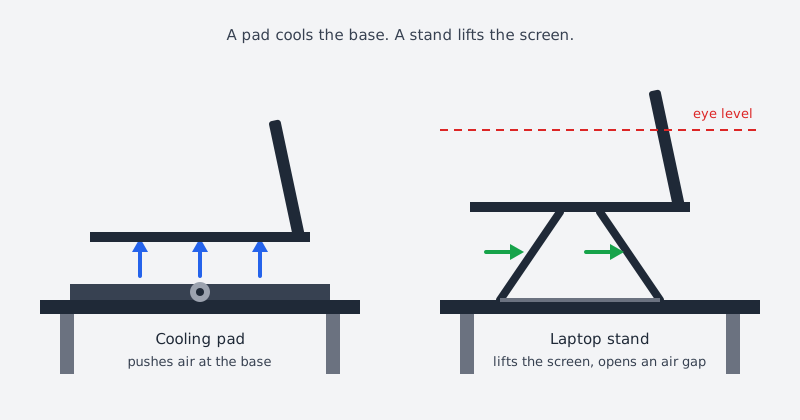
A cooling pad helps only when the laptop’s intakes are on its underside and the machine is actually heat-limited. A stand helps whenever the screen sits too low, and its lift opens the same air gap a pad’s mesh provides — with no fan noise and no USB port used. If your neck hurts or the screen sits too low, buy the stand. If the laptop throttles on a hard desk with clear vents and its intakes are underneath, buy the pad. Most desks need only one.
Compare stands once you know heat is not the problem
If the check below says the laptop’s intakes are not underneath — or the real complaint is a low screen, not heat — the pad is off the table. Compare the researched stands against the height, footprint, and travel needs of your actual desk instead of against a cooling spec you do not need.
A pad cools the base. A stand lifts the screen — and the lift opens an air gap for free.
First, check where your laptop breathes
Everything in this guide turns on one check, and it takes about a minute. A cooling pad only helps if the laptop draws its cooling air through the underside. Many laptops do — gaming laptops and larger workstations usually have intake grilles on the base. Many do not: thin ultrabooks often draw air through the keyboard deck or exhaust at the rear hinge, where a pad’s fan has nothing to feed. A pad under that kind of laptop mostly blows air at a closed bottom panel.
Run something heavy, then feel around the laptop. With a demanding task running, hold a hand near the base, the sides, and the rear hinge. Air being pulled in at the underside means a pad can feed those intakes; air moving only at the rear or through the keyboard means it cannot.
Look at the vent slots. Intake grilles on the bottom panel are the pad’s target. If the bottom is solid and the only slots are at the rear, the pad has no intake to serve.
Check the manual if you are unsure. The manufacturer’s manual or support page usually shows the intake and exhaust locations; a retailer listing rarely does.
Check the vents are clear before buying anything. Dust-clogged intakes and a soft surface — a bed, a couch, a blanket — choke airflow before any accessory can help. A pad on a soft surface is worse than useless: the surface blocks the pad’s own intake too. Start on a hard desk with clear vents.
If the intakes are underneath and the laptop still throttles on a hard desk with clear vents, a pad is a reasonable next step. If they are not underneath, skip the pad entirely — the rest of this guide is about stands.
What a cooling pad actually does
A pad is a powered fan (or several) in a flat base that sits under the laptop and pushes air at its underside. It does not change the laptop’s internal cooling — it feeds the intakes more air than still room air provides, and the mesh base keeps the laptop off the desk so warm air has somewhere to go. Three pads with clean, manufacturer-published specifications cover the realistic range:
Manufacturer-published specifications of three laptop cooling pads: Cooler Master NotePal X3, Havit HV-F2056, and Thermaltake Massive 20 RGB
Cooling pad
Fans
Airflow (manufacturer-rated)
Noise (manufacturer-rated)
Laptop size
Weight
Height settings
USB
Cooler Master NotePal X3 (R9-NBC-NPX3-GP)
1 × 200 mm
65–76.5 CFM (500–850 RPM)
16–23 dBA
Up to 17″
0.9 kg
Fixed wedge (51–71 mm)
1 × USB 2.0 passthrough
Havit HV-F2056
3 × 110 mm
65 CFM (1100 ±200 RPM)
Not published (“whisper quiet” only)
15.6–17″
680 g
2 settings
2 USB ports
Thermaltake Massive 20 RGB (CL-N014-PL20SW-A)
1 × 200 mm
64 CFM (600–800 RPM)
30 dBA
10–19″
1.52 kg
3 settings (3°, 9°, 13°)
USB-powered; no passthrough published
Three things to notice in that table. First, the airflow figures are close — 64 to 76.5 CFM — because a large slow fan and three smaller faster ones move similar volumes of air; the difference is the noise and the footprint, not the CFM headline. Second, Havit publishes no noise figure at all, only “whisper quiet” — a dB figure you may see in roundups is not a manufacturer figure and is not used here. Third, the pads’ height settings are a small fixed tilt, not a lift: two or three tilt angles raise the rear of the laptop by a degree or two, which is not the same as raising the screen to eye level.
One honest gap to state plainly: no manufacturer publishes a standardized temperature-drop claim, so no pad can be ranked by cooling power from its spec sheet. CFM and dBA figures are manufacturer-rated under each maker’s own test conditions, which are rarely published — present them as rated figures, never as head-to-head test results. The only honest cooling comparison comes from independent testing, covered below.
What a stand actually does
A stand is a lift, not a fan. It raises the laptop so the screen sits closer to eye level and opens an air gap underneath the machine — the same gap a pad’s mesh provides, without power, noise, or a USB port. Two verified stands show the range:
Nexstand K7 — fixed 14 cm riser. A fixed-height stand that holds the laptop 14 cm up. It does not adjust, it does not fold into a pocket-sized shape, and it adds no fan — it simply puts the screen higher and the base in open air. (Verified on the manufacturer’s product page, October 15, 2026.)
Roost V3 — 7 height settings, 6.5–12.5 inches of lift, 6 oz. An adjustable travel stand that lifts the screen up to a foot and folds flat at 170 g. That is real ergonomic range a pad cannot touch: a pad’s tilt is measured in degrees, a stand’s lift in inches. (Verified on the manufacturer’s product page, October 15, 2026.)
The stand’s cooling contribution is passive and real but limited: the open gap lets warm air escape instead of pooling between the laptop base and the desk, and it keeps the intakes clear of the desktop. It will not force air into the intakes the way a pad does. If the laptop’s fans are already running hard under load, a stand alone will not quiet them — but if the complaint is a low screen and a warm base during ordinary work, the stand solves the complaint that actually exists.
The independent-test reality check
What one real test actually measured
Manufacturer specs cannot rank cooling pads, so the useful evidence is independent testing — and the best recent comparison is TechRadar’s heatwave test: one Acer Predator Helios 300 gaming laptop (RTX 3080), a 15-minute 3DMark Steel Nomad stress test, each pad on maximum, measured with a thermal camera. The measurement was the warming of the laptop’s hottest external point during the test, not a CPU or GPU temperature drop — keep that framing, because it is the honest one.
No pad at all: 31.9°C rise. That is the baseline the pads are measured against.
KLIM Wind: 19.5°C rise at its maximum 1200 RPM — the second-weakest of the ten pads in that test (only the TopMate C12 did worse, at 22.8°C), and the weakest of the quiet ones. Its pad-only noise measured 36.2 dB at head height, 44 dB combined with the laptop’s own fans.
Best in that test: the Llano RGB at 8°C rise — a sealed-turbofan design, and by far the loudest of the quiet-to-loud spread the test recorded.
Two conclusions survive the caveats (one laptop, one workload, one day). First, a pad does measurably reduce the heat rise on a gaming laptop with underside intakes — even a weak pad cut the rise by about a third. Second, the spread between the best and worst pad in the same test is more than twofold, and the best coolers were the loudest. A pad is a real tool with a real noise cost, not a free upgrade — and the KLIM Wind’s manufacturer specifications are not cited in this guide because the published figures conflict across sources; it appears here only through this independent test.
The tradeoffs side by side
Cooling pad versus laptop stand across the tradeoffs that decide the purchase: ergonomics, cooling, noise, USB cost, portability, and failure modes
Cooling pad
Laptop stand
Problem it solves
Heat, when the intakes are underneath
Low screen, neck strain, blocked airflow
Screen height
Barely — a few degrees of tilt
14 cm fixed (K7) to 6.5–12.5 inches (Roost V3)
Cooling
Forced airflow, manufacturer-rated 64–76.5 CFM
Passive air gap only
Noise added
16–30 dBA rated, on top of the laptop’s fans
None
USB port used
Yes — one port (the X3 gives one back)
No
Portability
680 g–1.52 kg, flat but wide; the Massive 20 RGB is a desk product
Roost V3 is 170 g and folds flat; the K7 is a fixed desk riser
Desk footprint
About the size of the laptop, plus a cable
Smaller than the laptop (K7) or about the same
Fails when
Intakes are not underneath; vents are blocked; the laptop sits on a soft surface
The laptop throttles under load and needs forced airflow
The table makes the decision mechanical. If the row that matters most to you is screen height or noise, the stand wins outright. If the row that matters most is heat on an underside-intake laptop under load, the pad wins — and only the pad. Everything else (USB, portability, footprint) is a tiebreaker, not the decision.
Know when to stop
When not to buy either
The laptop’s intakes are not underneath
A pad blows air at a closed bottom panel. Buy the stand — or nothing — instead, and spend the pad money on the actual problem.
You want a pad and a stand
Do not stack them. A pad is a flat base and a stand is a lift; stacked they wobble, and the pad’s airflow is wasted once the laptop is raised off it. Choose by the primary complaint.
The laptop sits on a bed or a couch
Soft surfaces block the pad’s own intake and smother the laptop’s vents. Neither accessory fixes that — move to a hard surface first, then decide.
The quick decision checklist
Feel for the intakes under load: air drawn in at the underside means a pad can help; air moving only at the rear or through the keyboard means it cannot.
Check the vents are clear and the laptop sits on a hard surface — dust and soft surfaces choke intakes before any accessory can help.
Name the real complaint. A low screen and a sore neck mean stand; fan noise and throttling under load mean pad (if step 1 says the intakes are underneath).
Match the pad to the laptop’s size. 15.6–17 inches fits the HV-F2056 and the NotePal X3; up to 19 inches needs the Massive 20 RGB.
Count the USB cost. A pad takes a port: the X3 gives one back, the HV-F2056 lists two ports, and the Massive 20 RGB publishes no passthrough.
Weigh the noise. A pad adds 16–30 dBA rated on top of the laptop’s fans; a stand adds none. On a shared or quiet desk, that matters.
If either check fails, pause. A pad will not fix a laptop that throttles because its vents are blocked or its cooling is failing, and a stand will not fix heat. Fix the actual problem first.
Go here for routing that survives a raised laptop — a pad’s USB cable and a stand’s extra height both need slack.
Sources and verification
Primary references
Cooling-pad specifications below are from the manufacturers’ own published specs, verified November 9, 2026, except where noted. No retailer prices, ratings, or review data were used. These are non-affiliate references. Stand specifications (Nexstand K7, Roost V3) were verified on the manufacturers’ own product pages, October 15, 2026; see the laptop-stands comparison for the full stand research.
Two sourcing notes. Cooler Master’s own product page for the NotePal X3, a legacy model, is no longer live; the figures above are Cooler Master’s published specification sheet as reproduced by NeweggBusiness and in the manufacturer’s description. Havit publishes no noise figure for the HV-F2056; the dB figure in some roundups is not a manufacturer figure and is not used here. KLIM Wind manufacturer specifications are not cited — published figures conflict across sources — so the pad appears here only through TechRadar’s independent test.